


Export steps
Open the plugin: Click the resources button from the main menu bar, open the Plugins tab, and select the Export to GIF/Video plugin.
Choose flow: If multiple Flow Starting Points in file, choose flow to export by opening the Select a Flow box. If you only have one flow, it will be automatically selected for you and the box will be greyed out.
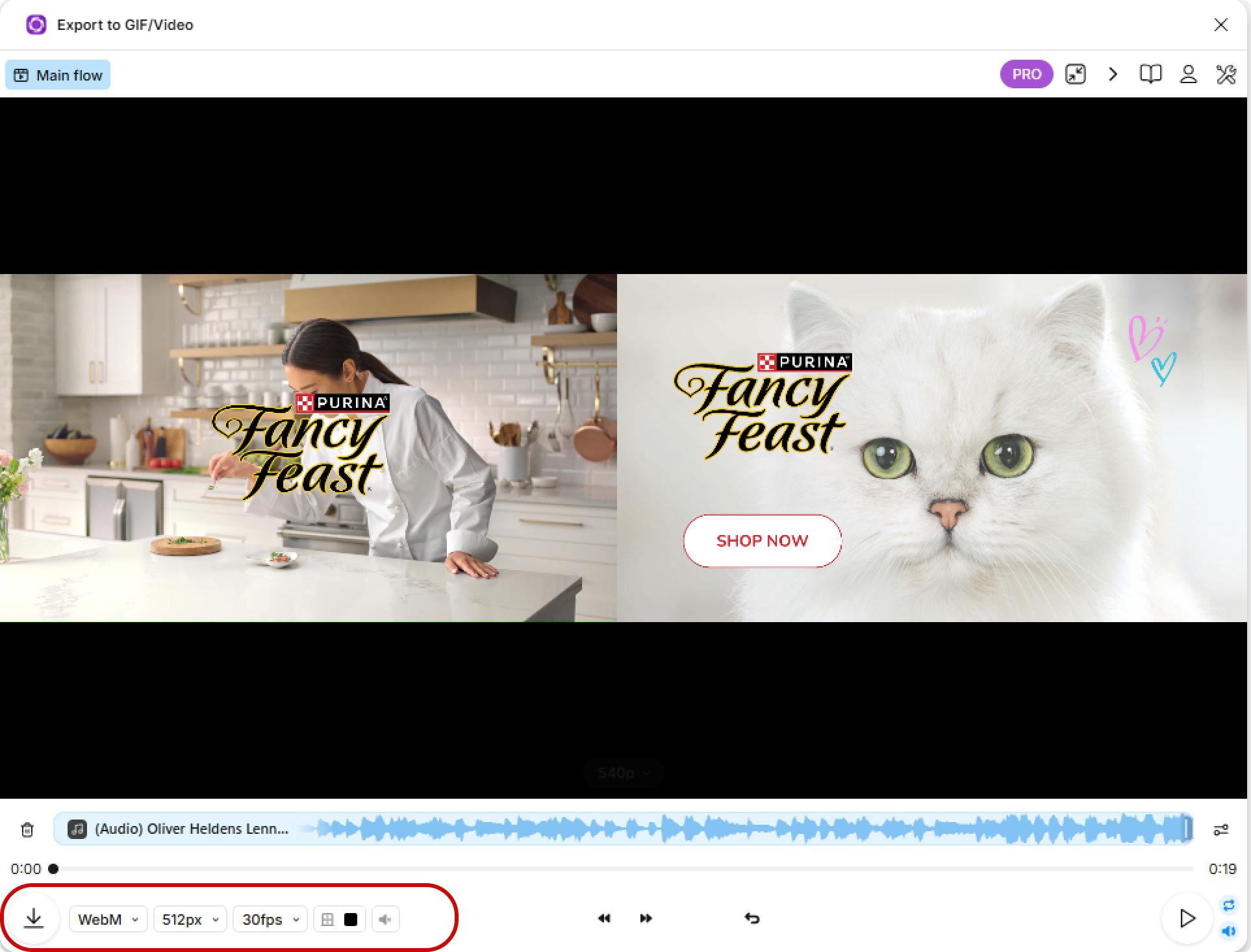
Select export settings: Options include (1) Resolution, (c) Format, (3) Frames per second, (4) Loop (5) Audio, and (6) Transparency/alpha. See the settings section below for additional detail.
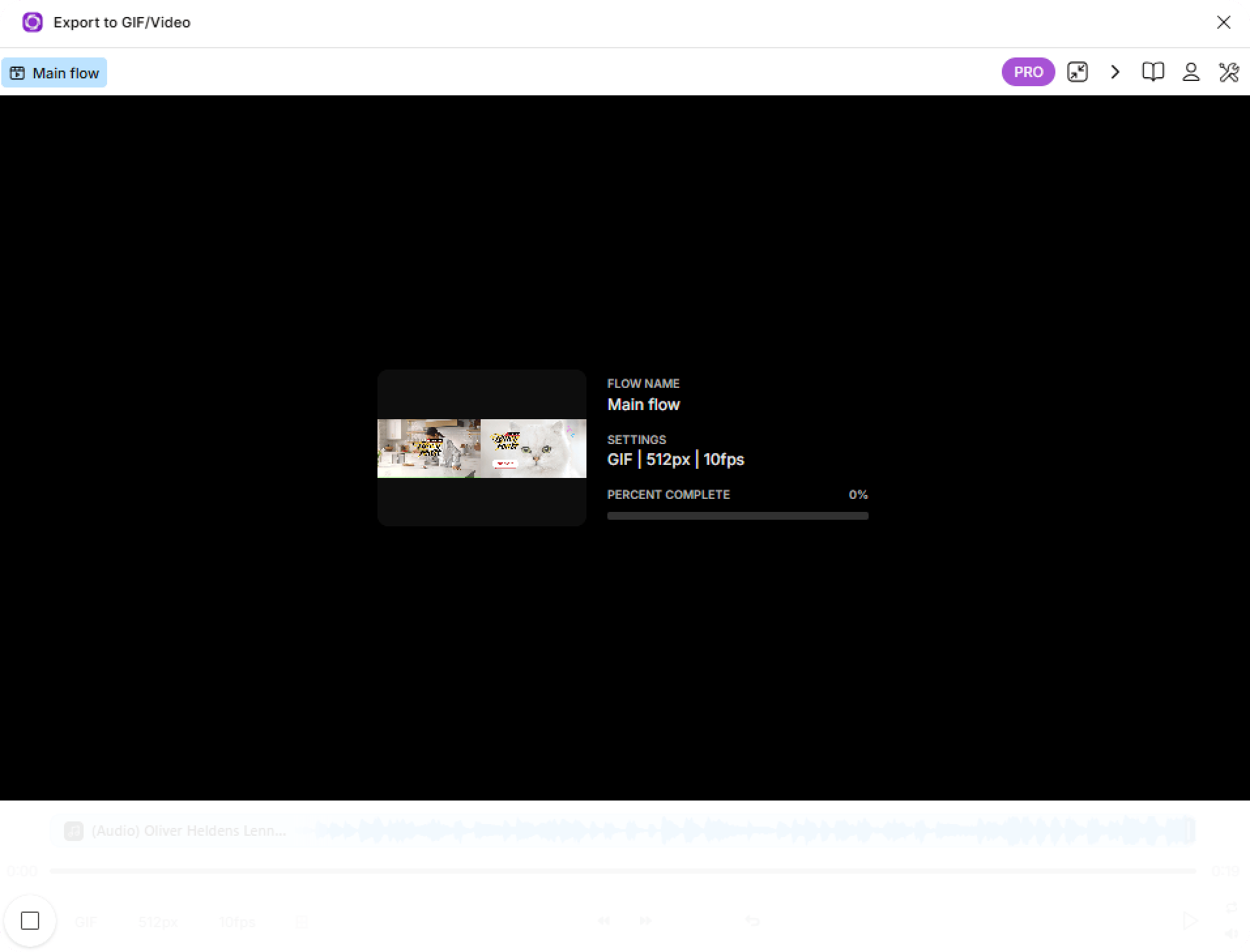
Export: Click the Export Animation button to begin the export process. This process can take from a few seconds to several minutes.
Provide feedback: Once your export is saved, you can share your satisfaction via a 👍 or 👎 vote. We collect this information to understand how the plugin is performing & identify potential bugs.
Exporting a video fill
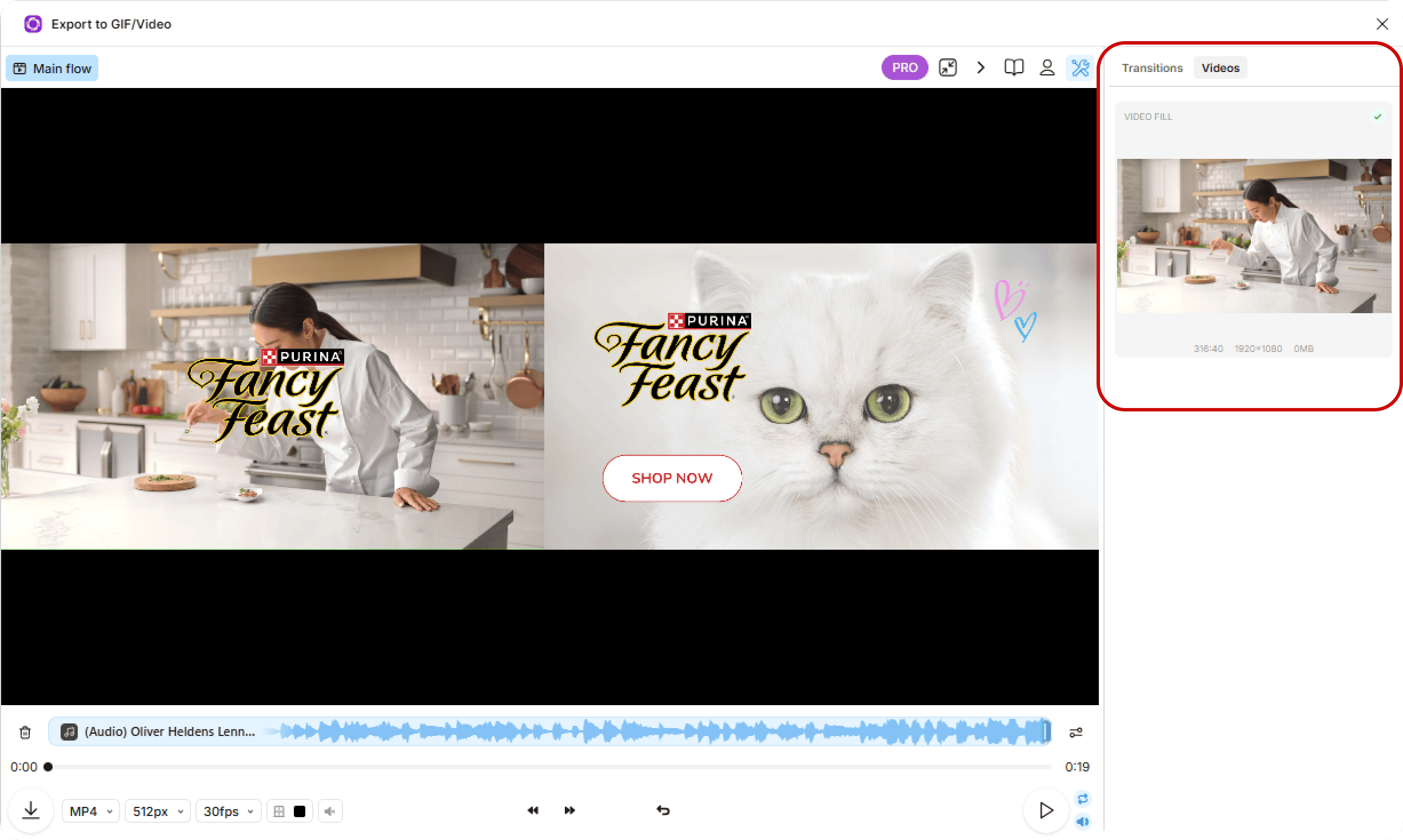
If your animation includes a video fill, you'll be prompted to re-upload the source video file to the sidebar
Export settings
You can set Resolution, Frames per Second, Format, and Loop at time of export.
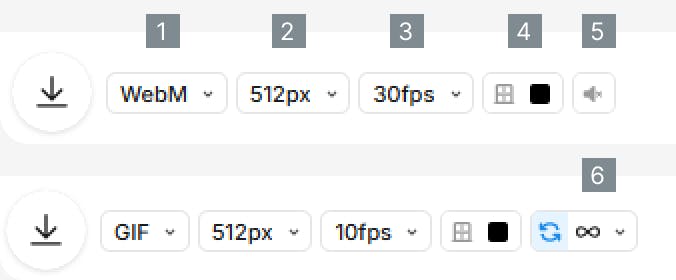
1️⃣ Format
We support exporting to the following ï¬le formats:
HD GIF: Good for simple looping animations with ephemeral use cases like slide presentations, email campaigns, and SMS interactions. We've improved GIF color profile with dithering & further compression and we call this HD GIF.
MP4: Good for high fidelity animations with longer-lived use cases like website videos &, video ads.
WebM: Good for browser-based use cases. Produces smaller file size than MP4, but less widely supported & requires viewers to install third-party plugin to use in Safari/IE. Supports alpha channel when design has transparent pixels.
MOV: Good for Mac OS users and Safari use cases. Supports alpha channel when design has transparent pixels.
Frames: Good for importing images into professional photography software like Premiere for further image editing. Exports individual keyframe images that make up animation sequence.
Note that with the Free plan, only the HD GIF format is enabled.
2️⃣ Resolution
At time of export, two methods of adjusting resolution are available.
Fixed: Scale to a specific resolution between 64px and 2160px. Sets longest side to selected number of pixels and adjusts shorter side to retain proportions.
Relative: Scale the resolution of your design relative to either 2x or 3x its original resolution Note that with the Free plan, relative scaling is not enabled.
To retain the original resolution of your design, select the 1x option (default). With the Free plan, fixed scaling above 512px and relative scaling is not enabled.
3️⃣ Frames per second (FPS)
We support following FPS settings by format:
GIF: 10, 20, 25, and 60fps
MP4, WebM & Frames: 12, 24, 30, 48, and 60fps
4️⃣ Transparency/alpha channel
We support export to WebM & MOV formats with alpha channel included. This option is available when export a design with transparent background pixels to either format. Unfortunately there is to codec available to export MP4 with transparency, so we are unable to offer until one becomes available.
Note that we use the VP9 codec for WebM and H.265 codec for MOV when exporting with transparency, both of which aren't universally supported by browsers.
GIF format includes alpha channel by default / natively if present in design, so no toggle is offered.
5️⃣ Sound
Includes any audio tracks from video fills in the export. Available for MP4, WebM and MOV exports. Note that GIF format does not support audio.
6️⃣ Loop
Toggle between a rendering the video on a continuous loop or a single time. Only available for the HD GIF format and is enabled by default.